How to Get the Most Out of Capcut Pro APK
November 1, 2026 (1 week ago)
CapCut is popular because it makes video editing feel simple, even when you want polished results for TikTok, Instagram, YouTube Shorts, Reels, or personal projects. If you are looking for tips around “CapCut Pro APK,” it is important to understand a few basics first. APK packages are for Android devices only, and Pro features in CapCut require the appropriate membership in the official app. This guide is independent and informational, not connected with CapCut, ByteDance, or any official distributor. The goal is to help you edit smarter, organize your workflow, and get more value from CapCut’s tools where they are available on your device, region, and plan.
Start With a Clear Editing Plan
The best CapCut edits usually begin before you tap the timeline. Instead of importing every clip and trying to fix things later, think about the story you want to tell. A short plan helps you save time, avoid messy timelines, and choose the right effects.
- Pick your goal: Decide if the video is for entertainment, education, product promotion, travel, or a personal memory.
- Choose the platform: A vertical short video needs a different format from a long YouTube video.
- Select the best clips first: Remove shaky, blurry, or repeated footage before editing.
- Write a simple outline: Plan your hook, main content, and ending before adding effects.
This simple habit keeps your project clean and makes advanced tools easier to use. A good edit is not just about effects. It is about timing, clarity, and flow.
Use Trimming and Splitting Like a Pro
Trimming and splitting are basic tools, but they are also the foundation of professional editing. CapCut supports clip trimming and splitting, although exact options can depend on the platform and app version you use.
- Cut dead space: Remove long pauses, shaky starts, and unnecessary endings.
- Split on action: Cut when a person moves, turns, jumps, or points. This makes edits feel natural.
- Match cuts to music: Place cuts on strong beats to make the video feel more energetic.
- Use shorter clips: For social media videos, quick pacing often keeps viewers watching longer.
A common beginner mistake is leaving clips too long. If a shot does not add meaning, emotion, or visual interest, cut it. Tight editing makes even simple footage feel more professional.
Build Better Videos With Multitrack Editing
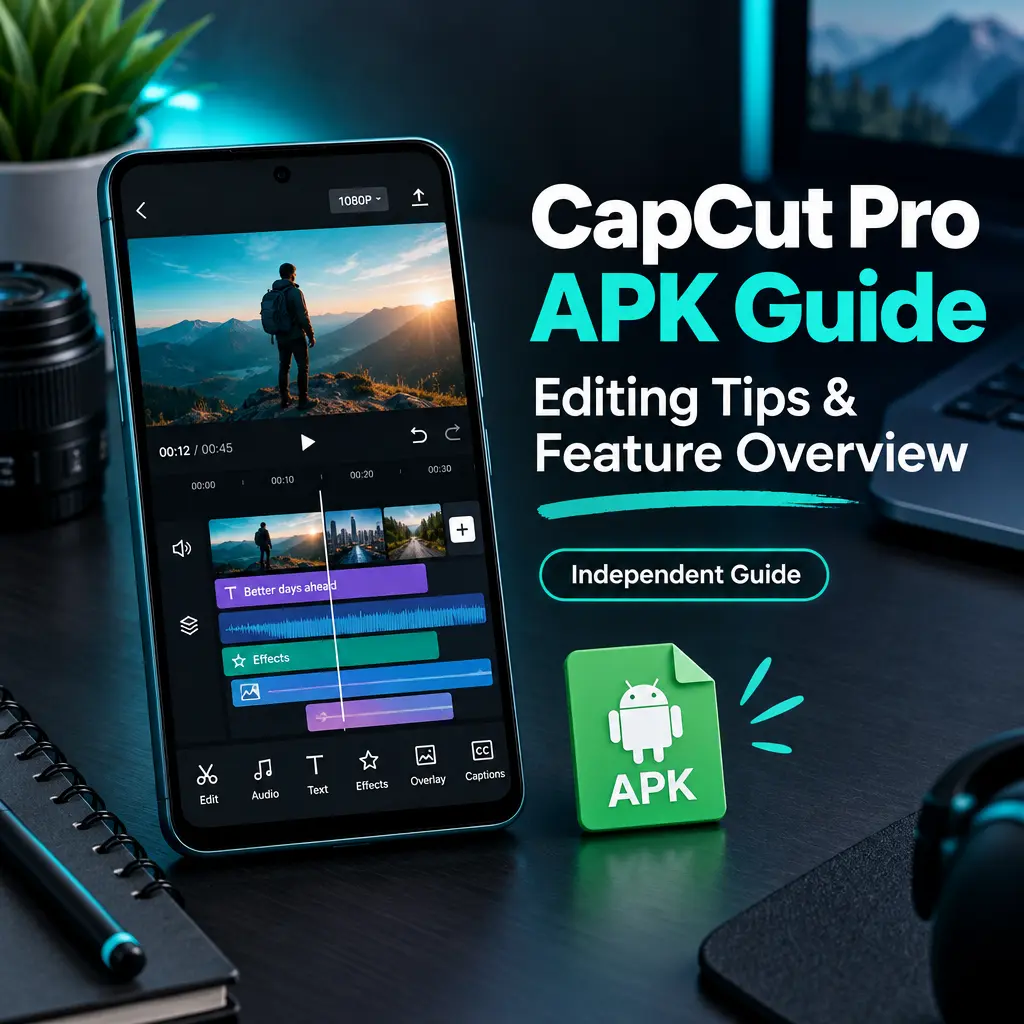
Multitrack editing allows you to layer videos, photos, text, stickers, audio, captions, and effects. This is one of the best ways to make your content look more complete. Instead of placing everything on one track, use layers with purpose.
- Main track: Keep your primary video clips here.
- Overlay track: Add reactions, screen recordings, logos, or extra visual elements.
- Text track: Use titles, captions, labels, or callouts.
- Audio track: Add voice, background music, sound effects, or ambience.
Keep your timeline organized. If you add too many layers without a plan, your video can look crowded. Use overlays to explain, highlight, or add emotion, not just to fill space.
Make Captions Easier to Read
Captions are very useful, especially for short videos where many viewers watch without sound. CapCut includes caption tools in supported versions, but availability can vary by device, language, region, or plan.
- Keep captions short: Break long sentences into small lines.
- Use strong contrast: White text with a dark outline is often easier to read.
- Place captions carefully: Avoid covering faces, product details, or important action.
- Check spelling: Auto captions can make mistakes, so review every line.
- Match the rhythm: Captions should appear at the same time as the speech.
Good captions improve accessibility and keep viewers engaged. They also make tutorials, reviews, and talking videos much easier to follow.
Use Effects and Transitions With Control
Effects and transitions can make your video more stylish, but using too many can distract from the message. CapCut offers effects, filters, transitions, animations, and visual tools depending on your app version, device, region, and plan.
- Choose one visual style: Do not mix too many filters in the same video.
- Use transitions only when needed: A clean cut is often better than a flashy transition.
- Match effects to the mood: Fast effects work well for energetic edits, while soft transitions fit calm videos.
- Preview before exporting: Effects can look different once the full timeline plays together.
The best trick is to use effects to support the story. If an effect makes the viewer notice the edit more than the content, reduce it or remove it.
Improve Audio Before You Export
Audio quality can make or break a video. Viewers may accept average visuals, but poor sound often makes them leave. Spend time balancing your audio tracks before exporting.
- Lower background music: Music should not overpower speech.
- Use fade in and fade out: This makes audio starts and endings feel smoother.
- Add sound effects lightly: Small sounds can make cuts, taps, and reactions feel more alive.
- Check volume changes: Make sure one clip is not much louder than the next.
If you record voiceovers, choose a quiet place and speak clearly. Clean voice audio is often more important than adding extra effects.
Try Background Removal Carefully
Background removal is a helpful CapCut feature where available. It can be useful for reaction videos, product highlights, tutorials, memes, and thumbnails. However, results can vary based on lighting, clothing, movement, device performance, and supported features.
- Use clear footage: A subject with good lighting is easier to separate from the background.
- Avoid messy backgrounds: Plain backgrounds usually give cleaner results.
- Check the edges: Hair, hands, and fast movement may need extra attention.
- Add a simple background: Do not make the final scene too busy.
When background removal works well, it can make your video feel modern and creative. When it does not, a simple crop or blur can still look clean.
Export With the Right Settings
Export settings affect final quality, file size, and upload speed. Do not automatically choose the highest available setting. Pick what fits your project and platform. CapCut export choices can vary, and not every device or plan supports every option.
- Use the correct aspect ratio: Choose vertical for Shorts, Reels, and TikTok, or horizontal for standard YouTube videos.
- Preview the full video: Watch from start to finish before exporting.
- Check text placement: Make sure captions are not hidden by platform buttons.
- Save a backup: Keep your project files or original clips when possible.
If your plan supports exports without certain branding or watermark behavior, use the official app settings provided to your account. Do not rely on unofficial claims about unlocked subscriptions, bypassed memberships, or modified premium access.
Stay Safe and Understand APK Limits
An APK is an Android app package. It is not made for direct installation on iPhone, iPad, macOS, or Windows. For computers, users should distinguish between the official desktop version of CapCut and optional Android emulator use. An emulator may run some Android apps on a PC, but compatibility is not guaranteed and performance depends on the device and software setup.
- Do not assume an APK is verified: If a file has not been inspected, its safety, version, and contents are unknown.
- Avoid “premium unlocked” promises: Pro features require the right membership in the official app.
- Check permissions: Be careful with apps requesting access that does not make sense.
- Keep your device protected: Use trusted device security practices and avoid unknown downloads.
To get the most out of CapCut, focus on editing skill, not shortcuts. Clean cuts, readable captions, balanced audio, smart effects, and careful exporting will improve your videos more than any single feature. Learn the tools, keep your projects organized, and use official options for Pro features when you need them.
Recommended For You