How to Update Capcut Pro APK to the Latest Version
October 10, 2026 (4 weeks ago)
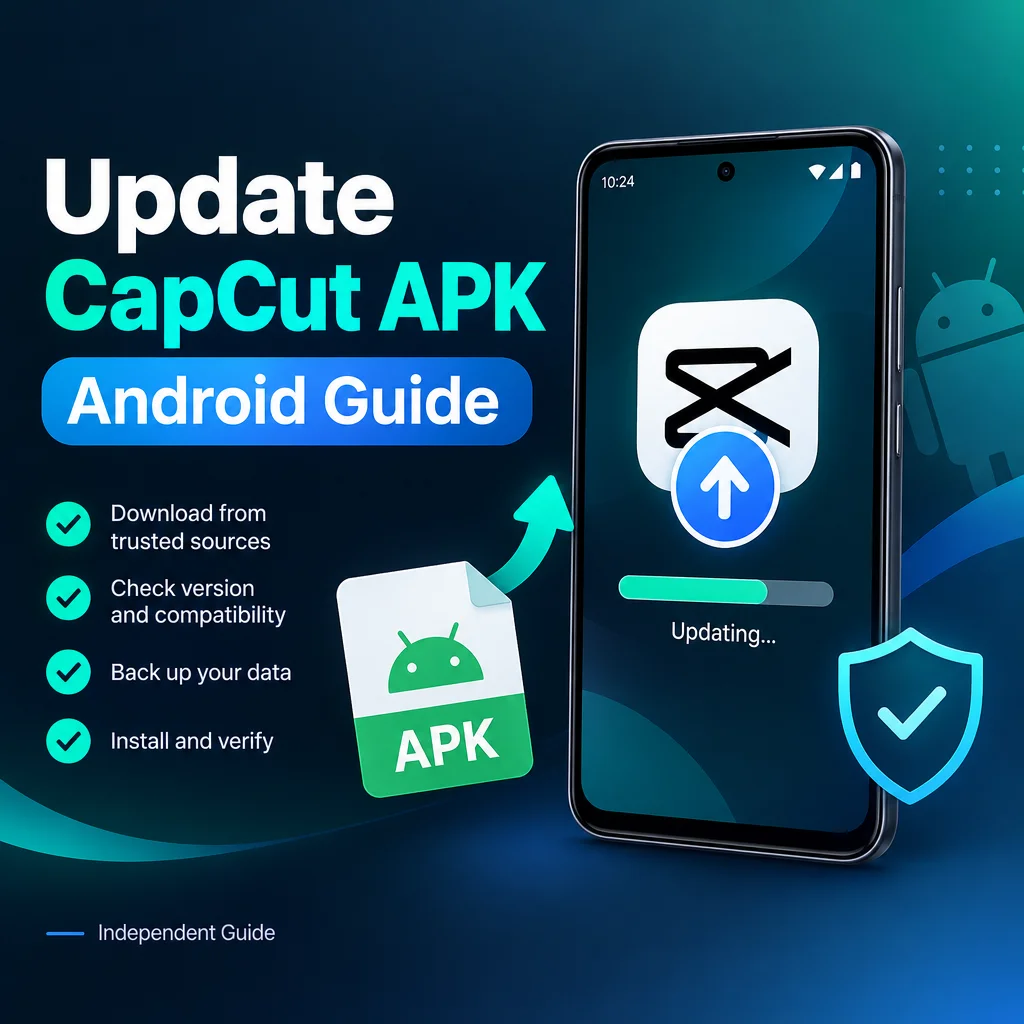
Updating CapCut Pro APK can sound simple, but it is worth doing carefully. APK files are Android installation packages, and they are different from installing CapCut through the official Google Play Store or using the official desktop, iOS, or web versions. This guide explains how to update an Android APK version in a safer, cleaner way while keeping your projects protected. It is written for general information only and is not affiliated with CapCut, ByteDance, or any official publisher.
Before You Update CapCut Pro APK
Before installing any APK update, understand what you are updating. CapCut offers video editing tools such as trimming, splitting, multitrack editing, captions, filters, effects, transitions, audio tools, templates, and background removal. However, feature availability can depend on your device, platform, region, and plan. CapCut Pro features require the correct membership in the official app, and an APK should not be treated as a guaranteed way to unlock paid features.
Many APK websites use words like “latest,” “premium unlocked,” “no watermark,” or “Pro free.” Be careful with those claims. Unless a file has been verified by an official source, its release status, safety, contents, scan status, and feature access cannot be confirmed. This guide does not guarantee that any APK is malware-free, ad-free, certified, or able to provide premium benefits.
Step 1: Back Up Your CapCut Projects
The most important step before updating is protecting your work. App updates can sometimes replace data, change file paths, or cause compatibility issues. If you edit videos often, back up everything you cannot afford to lose.
- Export finished videos to your gallery or cloud storage.
- Save project files inside the app if that option is available on your device.
- Move important clips, audio files, and images to a safe folder.
- Check whether your drafts are stored locally or connected to an account.
- Do not uninstall the current app unless you know your drafts are safely backed up.
If your drafts are only saved inside the current installation, uninstalling the app may delete them. When possible, update over the existing installation instead of removing the app first.
Step 2: Check Your Current App Version
Knowing your current version helps you avoid installing an older or incompatible file. You can usually check this from your Android settings.
- Open your Android device settings.
- Go to Apps or App Management.
- Find CapCut in the app list.
- Tap the app name and look for App version.
- Write down the version number before installing anything new.
If the APK file you found does not clearly show version details, package information, or update notes, treat it carefully. A file labeled as the newest release might not actually be the latest official version.
Step 3: Prefer Official Update Sources When Possible
The safest way to update CapCut is through official app stores or official CapCut platforms. These sources are more reliable for getting current releases, compatible builds, and normal account-based access to Pro features.
- Android users can check the Google Play Store, where available.
- iPhone and iPad users should use the App Store, not APK files.
- Windows and macOS users should use the official desktop app or web version.
- APK files are only for Android and should not be installed directly on iOS, macOS, or Windows.
If you want to use CapCut on a PC, understand the difference between the official desktop app and an Android emulator. The desktop version is made for Windows or macOS. An APK can only run on a PC through compatible Android emulator software, and even then, performance and features may vary.
Step 4: Review the APK Source Carefully
If you still choose to update using an APK, take time to review the source. This independent guide cannot verify any third-party APK, so you should avoid downloading files from pages that make exaggerated promises.
- Check whether the website clearly explains what the file is.
- Avoid download buttons that redirect many times or force extra apps.
- Be careful with files that claim to unlock subscriptions for free.
- Do not trust claims of “safe,” “official,” or “verified” without proof from an official source.
- Compare the package name and app name before installing.
A trustworthy update process should be transparent. If a page hides file details, pushes unrelated installers, or asks for unnecessary permissions, it is better to stop.
Step 5: Enable APK Installation for Your Browser or File Manager
Android blocks unknown app installs by default for security reasons. If you install an APK manually, you may need to allow installation from the app you use to open the file, such as your browser or file manager.
- Open Settings on your Android device.
- Go to Security, Privacy, or Apps, depending on your device.
- Find Install unknown apps.
- Select your browser or file manager.
- Allow installation only if you understand the risk.
After installing, it is a good idea to turn this permission off again. Leaving unknown installs enabled can make it easier to accidentally install unwanted apps later.
Step 6: Install the Update Without Deleting Your Drafts
Once you have backed up your content and reviewed the file, open the APK on your Android device. If the APK uses the same package name and signing method as your current installation, Android may offer to update the existing app. If it does not match, Android may block the update or treat it as a different app.
- Open the downloaded APK file.
- Read the installation prompt carefully.
- Tap Update or Install if you choose to continue.
- Wait until Android finishes the process.
- Open the app and check whether your drafts still appear.
If Android says the app is not installed, the package may be incompatible, corrupted, older than your installed build, or signed differently. Do not repeatedly force the installation if you are unsure. Repeated uninstalling and reinstalling can increase the risk of losing local projects.
Step 7: Check Editing Tools After Updating
After the update, open a test project before working on an important video. Try basic editing tools first, such as trim, split, captions, transitions, music, effects, filters, and export. Some tools may not appear on every device or account. Others may require an internet connection, regional support, or a valid plan.
- Test a short video before editing a large project.
- Check whether old drafts open correctly.
- Confirm that media files are still linked.
- Try exporting a small sample video.
- Review app permissions if something does not work.
Do not assume that updating an APK will add every CapCut Pro feature. Premium tools, advanced assets, and some export options may require official membership through the official app experience.
Step 8: Fix Common Update Problems
If the update fails, start with simple checks. Make sure you have enough storage space, restart your phone, and confirm that the APK is meant for Android. If your device blocks the file, there may be a compatibility or security reason.
- If installation is blocked, check unknown app install permission.
- If the app crashes, clear cache from Android settings, but avoid clearing data unless your drafts are backed up.
- If projects are missing, check local folders, cloud sync, and account login status.
- If export fails, try a shorter video or reduce heavy effects.
- If features are missing, they may not be available for your device, region, platform, or plan.
Final Tips for a Safer Update
Updating CapCut Pro APK should be done with caution. Keep backups, avoid unrealistic claims, and remember that APK files are for Android only. For the most reliable update experience, official CapCut channels are the better choice. If you use an APK, treat it as an unverified file unless it comes from a trusted and official source. A careful update process protects your edits, your device, and your time.
Recommended For You